
Online Personal Study Component
ASSESSING YOUR ONLINE (PRE-COURSE) STUDY COMPONENT VIA YOUR WEB BROWSER!
PLEASE READ THIS ENTIRE EMAIL!
WELCOME MESSAGE
Dear Student,
Welcome to Intelligent Training Solutions, and thank you for enrolling in our CPPFES2026 Inspect and test emergency and exit lighting systems course.
WARNING!
This email is large and contains valuable information. Please take the time to read it carefully and in full! We understand nobody likes to read a lengthy document; however, the information contained within is essential and a direct result of the most common questions we receive with an enrolment of this kind; therefore, we ask for your patience.
LEARNER PORTAL ACCESS
To make the most of your upcoming course, you will need access to our ITS Learner Portal, which is available in two ways:
-
Online via a Web Browser – You can log in through any modern web browser on your computer or tablet device (we do not recommend accessing the web browser version of our portal on your mobile phone!); OR
-
Through the Moodle App – You can download and install the Moodle App for quick and easy access on your phone or tablet.
Depending on your preference, you can choose how you would like to access the Learner Portal.
➡️ If you would like to complete your personal study component via a web browser, simply continue reading below for instructions on downloading and setting up the app.
➡️ If you prefer to use the Moodle App, you can stop reading here and return to your emails. Please look for our other Welcome Email, which contains step-by-step instructions on accessing the course through the Moodle App.
.
ACCESSING OUR LEARNER PORTAL VIA YOUR WEB BROWSER
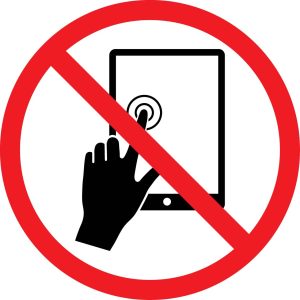
DO NOT USE THESE DEVICES WHEN ACCESSING OUR LEARNER PORTAL USING A WEB BROWSER
 |
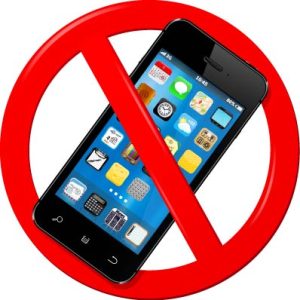 |
| Tablets or iPads | Mobile Phones |
When using a web browser, our learner portal works best when used on a computer or laptop and requires internet access. We do not recommend, nor can we provide, technical support if you attempt to complete your online training session using a tablet or mobile device. Our web based portal is not designed to display correctly on small screens. You will need to use the Moodle App for this!
SYSTEM REQUIREMENTS
To use our learner portal, you will need the following:
- Access to the internet.
- Access to a computer or laptop.
- A current and up-to-date internet browser. We recommend Google Chrome, Mozilla Firefox, Safari, or Internet Explorer.
- Access to your email account. A shared email address is not recommended.
REGISTERING FOR ACCESS TO YOUR TRAINING SESSION
To register on our Learner Portal, follow the steps below. Registration should take no more than 10 minutes, but the speed of your email service determines the actual time. During the registration process, if you do not receive our confirmation emails, please check your spam or junk email folders.
- NAVIGATE TO OUR LEARNER PORTAL. VISIT: https://lms.its.edu.au/moodle/login/index.php
Start by clicking the web link above to access our Learner Portal. If the blue link does not work, you may need to cut and paste it into your web browser. - LOGIN or CREATE A NEW ACCOUNT:
ARE YOU AN EXISTING STUDENT?
If you have previously been our student, log in using your existing login credentials. If you need help remembering your login credentials, please use the forgotten your username or password link.
NEW STUDENT TO I.T.S?
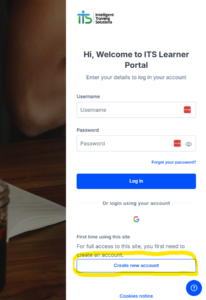
If you have not been a student with Intelligent Training Solutions before, you must create an account to access our Learner Portal. You can do this by clicking the red CREATE NEW ACCOUNT button and following the screen instructions. See the picture below.
- FINDING YOUR COURSE ON THE LEARNER PORTAL:
Once you have created your account, you must enrol in the CPPFES2026 – Inspect and Test Emergency Lighting Systems course to access the online training session. To do this, follow the instructions below:
OPTION 1 | GAIN QUICK ACCESS TO YOUR COURSE:
To be directed to your course, click (or copy) the following URL: https://lms.its.edu.au/moodle/course/view.php?id=1129.
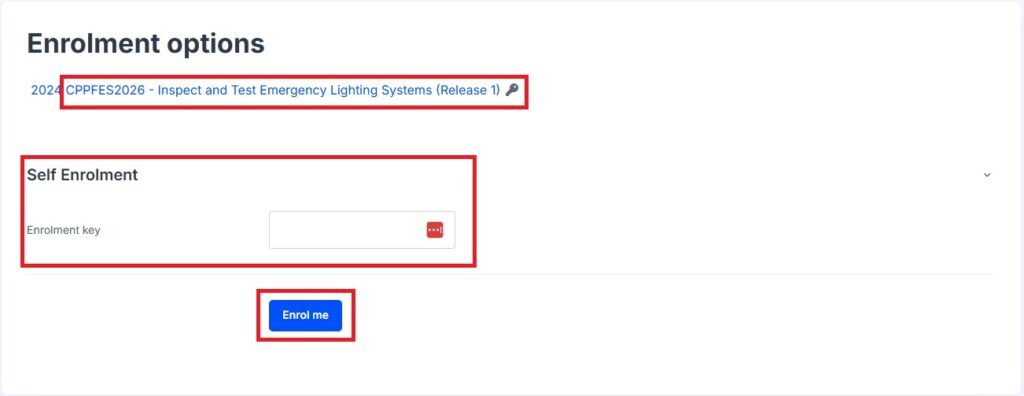
When the web page opens, enter the ENROLMENT KEY: LDJElectrical2024#
OPTION 2 | Find Your Course Manually by following these instructions:
If, for any reason, Option 1 does not work for you (for example, you are unable to click on the link or cut and paste the link into your browser, follow the instructions below to gain access to your course.
- Click the following Link: https://lms.its.edu.au/moodle/course/index.php. This will take you to our Learner Portal, where you can view all the available courses.
- Using the Search Courses field, type in ‘CPPFES2026’, then press the Enter key on your keyboard.
- Click on the course titled ‘CPPFES2026 – Inspect and Test Emergency Lighting Systems’.
- After finding and clicking on your course, you will be prompted to enter an enrolment key. This enrollment key is case-sensitive and must be entered as shown in red text below.
Enter the ENROLMENT KEY: LDJElectrical2024#
Once you complete these steps, the Learner Portal will navigate you to your course, and you are ready to start!
The course requires you to read a presentation OR watch the trainer’s presentation on YouTube, then complete a short quiz. Once you have completed the quiz, the learner portal will send you a Verification of Competence Certificate as a PDF document directly to your email address.
COURSE START/END TIMES AND LOCATION.
Please review the following important information for your course: {form_title}
-
Start Time: 8:00 am sharp
-
Duration: Approximately 6 hours
-
Arrival Time: Please arrive at least 15 minutes early to allow time for sign-in procedures required by the venue.
⚠️ Important Attendance Information:
If you do not attend your scheduled course, or if you fail to provide Intelligent Training Solutions with a minimum of eight (8) days’ notice of your inability to attend, your course fees will be forfeited.
For further details, please refer to the Enrolment Terms and Conditions provided at the time of your registration.
TRAINING LOCATION
- INTELLIGENT TRAINING SOLUTIONS – 74/2 COBHAM STREET, RESERVOIR, VIC 3073
- ONSITE @ YOUR PLACE OF EMPLOYMENT
WHAT TO TAKE WITH YOU
We recommend that you take the following items with you on the day of your training:
- Working Pen
- Morning Tea – Most of our training facilities will have tea and coffee facilities.
- Photo identification (driver’s licence, student card, passport, etc.)
WHAT TO WEAR TO CLASS
We recommend wearing comfortable, casual clothing as you will be required to participate in physical activities.
If you have any concerns or questions regarding the amount of physical activity involved in your course, please get in touch with our office during business hours for assistance. We are always happy to speak with you!
FINAL THOUGHTS
On behalf of the team at Intelligent Training Solutions, we hope you enjoy this course and trust that you will find the information informative and enjoyable. If you require assistance completing your online training course, please contact our student support team using the phone number below. They can arrange an appointment to visit our training centre or speak with you on the phone.
STUDENT SUPPORT: 03 5415 0217
ADMINISTRATION OFFICE: 03 5415 0204
EMAIL: admin@its.edu.au
If you require any additional information, please do not hesitate to contact our office at 03 5415 0204 or email admin@its.edu.au
Kind regards,
Property Services Team
Intelligent Training Solutions